Server Wiki tutorial
In this tutorial, you'll learn how to:
Create a documentation
Create a topic
Create sub-topics for the created topic
Localize the topic
Create a command shortcut for the topic
Step 1 - Creating a documentation
Navigate to server's
modsfolder and open Voile's data folder namedIwakuraEnterprises_Voile.Inside Voile's data folder, there will be a few files and folders.
config.jsonused to configure Voilecachecontaining downloaded images and other datadocumentationcontaining server's wiki/documentationgenerated_ui_errorsfor any UI-related errors
Open the
documentationfolder. Inside this folder, you'll be able to create the server wiki.Open the
index.jsonfile inside the folder.
This index.json file contains all documentation definitions for the server. Let's add a new documentation:
This will create a new server wiki under the group MyGroup, with documentation ID MyDocumentation and with name My lovely wiki.
Step 2 - Creating a topic
Inside the
documentationfolder, next to theindex.jsonfile, let's create a new folder namedMyGroup_MyDocumentation. This folder will contain all topics for the documentation.Inside the created folder, create a new text file called
my-topic.md
This will create a new topic within the documentation. The text file contains information about the topic and the topic's Markdown content.
Save the file and head over to Hytale.
Run the
/voile-reloadcommand.
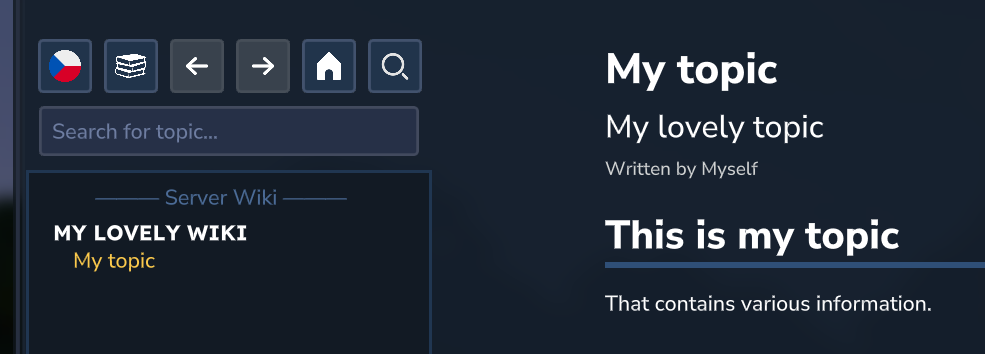
Now, after opening Voile's interface with the /voile command, you should be able to see the newly created documentation named My lovely wiki with one topic.
Step 3 - Creating sub-topics
All files with the .md file type inside the MyDocumentation folder will be included in the My lovely wiki documentation. To add a sub-topic to a topic, you need to create a new text file and specify it as a sub-topic.
Create a new text file named
rules.mdnext to themy-topic.mdfile.
Open the
my-topic.mdfile and addsub-topicsfield inside the topic's front-matter.
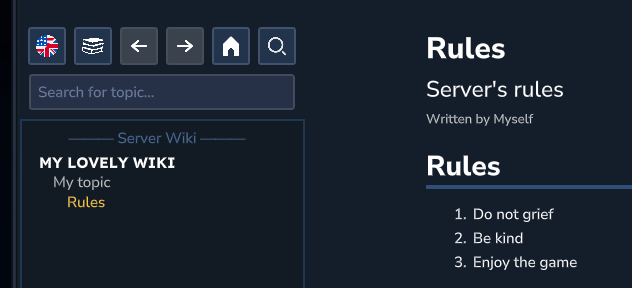
This will add the Rules topic as a sub-topic for the My topic topic. Inside the sub-topics list, you specify either a topic ID (usually based on the topic's file name) or a folder name (to include all topics inside the folder).
Head over to Hytale and run the
/voile-reloadcommand.
After opening Voile's interface, you should be able to see two topics, one named My topic and the second, under it, named Rules.
Step 4 - Localizing the topic
To translate a topic, create a new text file next to the topic you want to localize. Let's translate the My topic topic.
Create a new text file named
my-topic$cs.mdnext to themy-topic.mdfile.
This will create localized topic for topic ID my-topic with the language code cs.
Head over to Hytale and run the
/voile-reloadcommand.
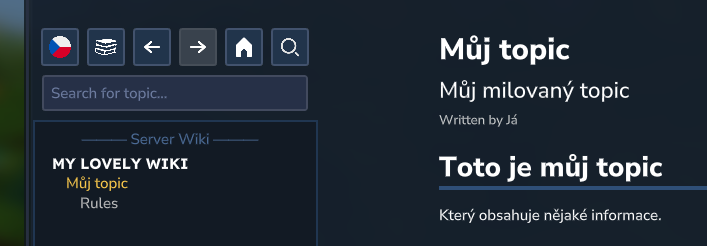
After opening Voile's interface, there should not be any change. Open the language selection menu by clicking the top-left button and select Czech.
Now you should be able to see the first topic named Můj topic and the topic's content should be translated as well.
Step 5 - Creating a command shortcut
To allow players to quickly open a certain topic, you can create command shortcuts. For example, let's create a command shortcut /rules that will open the rules topic.
Open the
config.jsoninside theIwakuraEnterprises_Voilefolder.Head down and add a command shortcut to the
commandShortcutslist.
This will create command /rules that will open the Rules topic by its topic identifier.
Restart the Hytale server.
After restarting the server, you should be able to run /rules command to open the Rules topic automatically.
Further reading
To learn more, please see the following topics.