Mod Integration tutorial
In this tutorial, you'll learn how to:
Create a mod documentation
Create a topic
Create sub-topics for the created topic
Localize the topic
Step 1 - Creating a documentation
Navigate to your mod's resources and create a
Commonfolder.Inside the
Commonfolder, create aDocsfolder.Inside the
Docsfolder, create a new JSON file named{YourModGroup}_{YourModName}.json
This will create a new mod wiki under the group YourModGroup, with documentation ID MyDocumentation and with the name My Mod Name.
Create new folder named
{YourModGroup}_MyDocumentationnext to the{YourModGroup}_{YourModName}.jsonfile.
The folder structure should look something like this:
Step 2 - Creating a topic
Inside the
{YourModGroup}_MyDocumentationfolder, create a new Markdown file namedmy-topic.md
This will create a new topic within the documentation. The text file contains information about the topic and the topic's Markdown content.
Step 3 - Creating a sub-topic
Inside the
{YourModGroup}_MyDocumentationfolder, create a new Markdown file namedfeatures.md
Open the
my-topic.mdfile and add thesub-topicsfield inside the front-matter:
This will add the Features topic as a sub-topic for the My topic topic. Inside the sub-topics list you specify either a topic ID (usually based on the topic's file name) or a folder name (to include all topics inside the folder).
Step 4 - Localizing a topic
To translate a topic, create a new text file next to the topic you want to localize. Let's translate the My topic topic.
Create a new text file named
my-topic$cs.mdnext to themy-topic.mdfile.
This will create localized topic for topic ID my-topic with the language code cs.
For players with their preferred language set to Czech, this translated topic will be shown.
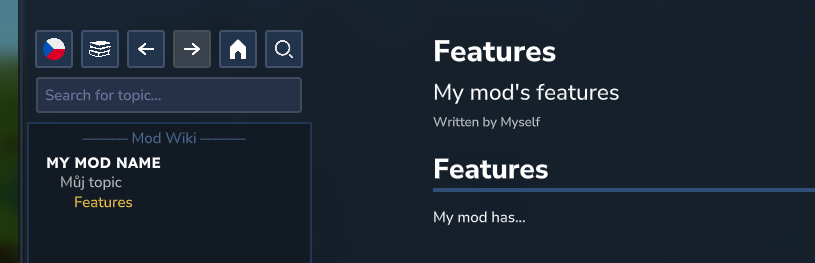
Result
Troubleshooting
If you have problems and can't see the created mod documentation, check the console logs.
If you still don't know why it isn't working, feel free to get support at &9&lhttps://support.voile.dev
Opening Voile's interface programmatically
Other mods may open Voile's interface using the VoileAPI class. These methods do not check player's permission.
To access this class, please, include Voile as compile-time dependency to your mod.
Method | Description |
|---|---|
| Opens the interface with the last opened topic and player's interface settings |
| Opens the interface with specified topic identifier. Also allows you to choose whenever Not Found topic should be visible if the specified topic does not exist. |
| Opens the interface with specified DocsContext. This method is reserved for experienced modders. |
Further reading
To learn more, please see the following topics.