User Interface
Voile's interface is accessible via the /voile command.
Voile's UI is separated into three distinct parts:
(left) Documentation tree with buttons
(middle) Topic content
(right) Topic chapters
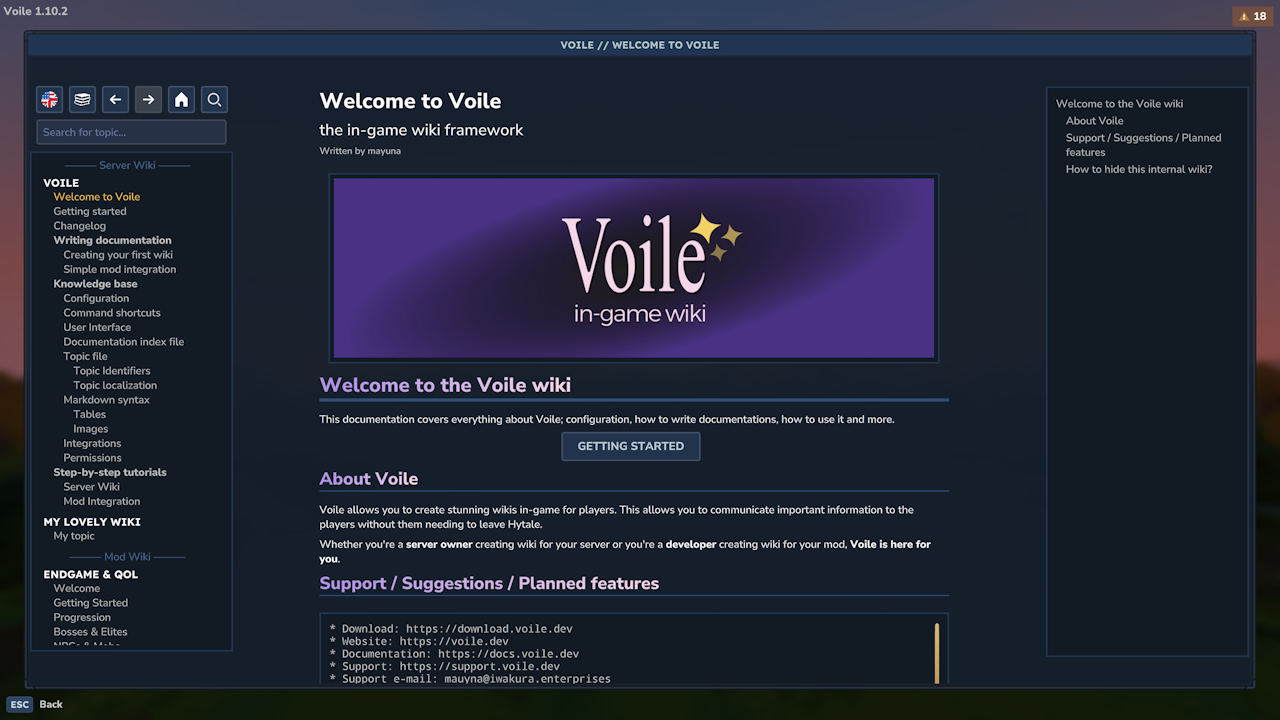
1. Documentation tree with buttons
On the left side, there are buttons and a documentation tree.
Using the buttons, you may configure, navigate and search server and mod documentation. From left to right:
Language select
Interface mode
Previous topic
Next topic
Home
Full-text search toggle
Search bar
Documentation tree
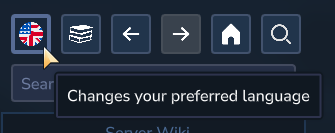
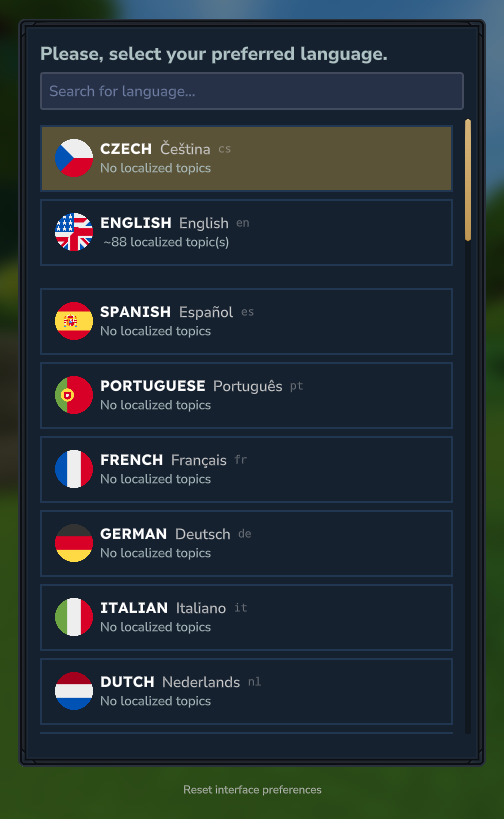
1.1. Language select button
Using the language select, it is possible to open a menu for selecting a preferred language. The menu also allows you to reset the player's interface preferences to factory defaults.
Player's interface preferences (language select, currently open topic, interface mode etc.) are persisted to the disk (this can be disabled in Voile's configuration).
1.2. Interface mode button
With the interface mode button, you can switch between available interface modes. This includes all of Voile's integrations and different views. Each interface mode has specific documentation types.
Interface mode | Documentation types |
|---|---|
Voile | Server Wiki, Mod Wiki, External Mod Wiki, Internal Wiki |
Hytale Modding Wiki | HMW's Installed Mods, HMW's Mods |
If no documentation types are enabled for the interface mode, it won't be accessible.
Hovering over the button shows all available interface modes. If no interface modes are available, the button is grayed out.
1.3. Previous topic button
Voile holds recently visited topics. Using the previous topic button, you're able to navigate to the previously opened topic.
Hovering over the button shows the current topic history.
1.4. Next topic button
Similar to the 1.3. Previous topic, this button allows you to navigate to the next topic, if you've navigated to a previously opened topic.
The next topic resets when you open a topic. Hovering over the button shows the current topic history.
1.5. Home button
Opens the first found topic in the currently open interface mode.
1.6. Full-text search toggle button
Toggles the full-text search functionality. When enabled, the search bar will search in the topic's content.
The full-text search functionality can be disabled in Voile's configuration.
1.7. Search bar
The search bar, under the buttons, allows you to search in the currently visible topics in the documentation tree. Found topics based on the search query are highlighted with a blue-ish color.
If the search query is satisfied by a child topic, all of its parent topics are in the search results as well. However, they won't be highlighted.
1.8. Documentation tree
Under the buttons and search bar, there's a documentation tree. Documentation tree shows all documentations and topics within those documentations. Documentation tree can be filtered by the search bar.
To open a topic, one must click the topic label inside the documentation tree. However, categories cannot be opened. Categories are rendered in bold.
2. Topic content
In the middle, there is the currently opened topic and its content.
If an error occurs while rendering the topic's content, the error message will be shown here as well.
3. Topic chapters
On the right side, a tree of chapters for the currently opened topic is visible. This tree is purely visual and currently does not have any functionality.
Mod Integration
Other mods may open Voile's interface using the VoileAPI class.
Method | Description |
|---|---|
| Opens the interface with the last opened topic and player's interface settings |
| Opens the interface with specified topic identifier. Also allows you to choose whenever Not Found topic should be visible if the specified topic does not exist. |
| Opens the interface with specified DocsContext. This method is reserved for experienced modders. |