Formatting
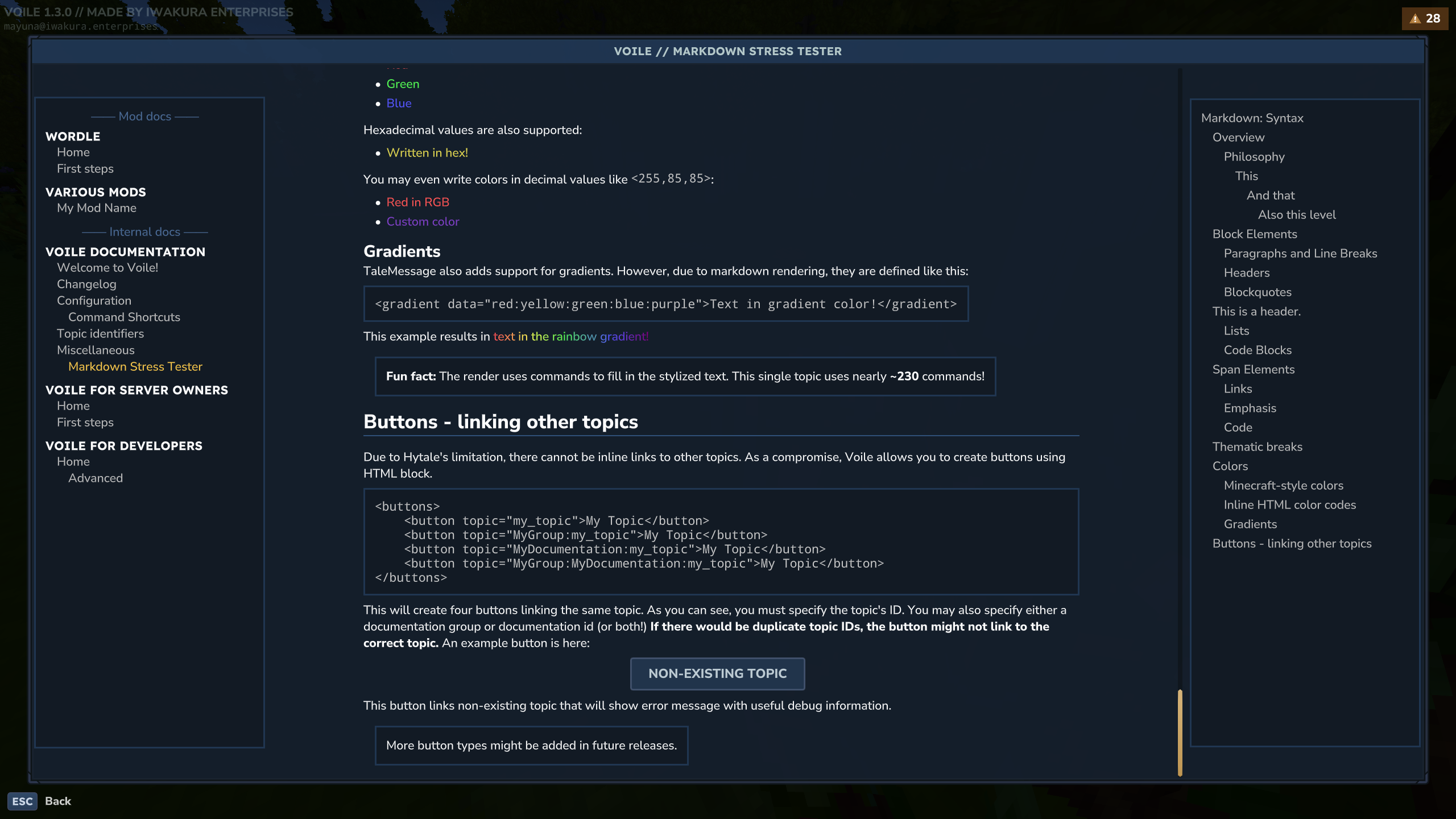
Voile comes with powerful Markdown renderer that allows you to create complex Markdown while looking top-notch. With nearly all Markdown elements supported, there are few additional that are great when creating documentations.
Markdown Syntax
Nearly all Markdown elements are supported, incl. block quotes, code blocks and even indented code blocks. For more information on Markdown syntax, see Markdown Cheat Sheet.
Images
As of version 1.4.0 Voile supports images. Image syntax follows the standard Markdown syntax with an additional features. Images are always rendered in the middle of the topic.
An image can be sourced from multiple locations:
Resource asset; all images located in the
Common/resourceFile system image; images that are located in
mods/IwakuraEnterprises_Voile/and/or relative to server topic file.Online image; any online image that can be downloaded.
If image fails to load or the runtime images are disabled in the configuration, the "Image not found" and "Images are disabled" images will be shown.
Image resizing
Additionally, you may also override image's resolution. This can be done in the [] block by specifying {widthxheight} at the end of the alternative text.
The example will resize the image to 300 pixels of width and 200 pixels of height. You may also specify 0 as one of the sizes, Voile will resize the image with respect to the aspect ratio.
This example will show image rescaled to 300 pixels of width with respect to its aspect ratio.
One paragraph, multiple images
Voile's Markdown renderer supports multiple images in one paragraph.
This example will show two rows of images.
Image sources
Resource assets
You may reference any images that are in the Common/ resources. You must provide fully qualified path to the image's resource in order to be properly displayed, omitting the Common/ directory.
File system image
You may also reference any image located in the mods/IwakuraEnterprises_Voile/ directory. Voile first looks for images relative to the topic's file and then checks from the root of its plugin data directory.
For example, you may have this kind of structure:
When referencing the welcome-banner.png from my-topic.md, you may reference the file with two ways:
topic-images/welcome-banner.png-> relative to themy-topic.mddocumentation/ServerDocs/topic-images/welcome-banner.png-> absolute path starting in themods/IwakuraEnterprises_Voile/directory.
The other image in the example can be referenced in these two ways:
../../weapons/misc/weapon.pngweapons/misc/weapon.png
Online images
You may also reference online image. This is done by specifying the URL to the image. The URL must start with http or https, otherwise it won't be treated as an online image.
The URL must point directly to the image, so for example https://i.imgur.com/image-id.jpeg will download the image from imgur.
Online images are downloaded to mods/IwakuraEnterprises_Voile/runtime_images/ and are subject to eventual deletion, either when starting the server or when their TTL expires (defaults to one day). See Configuration topic for more info.
Colors
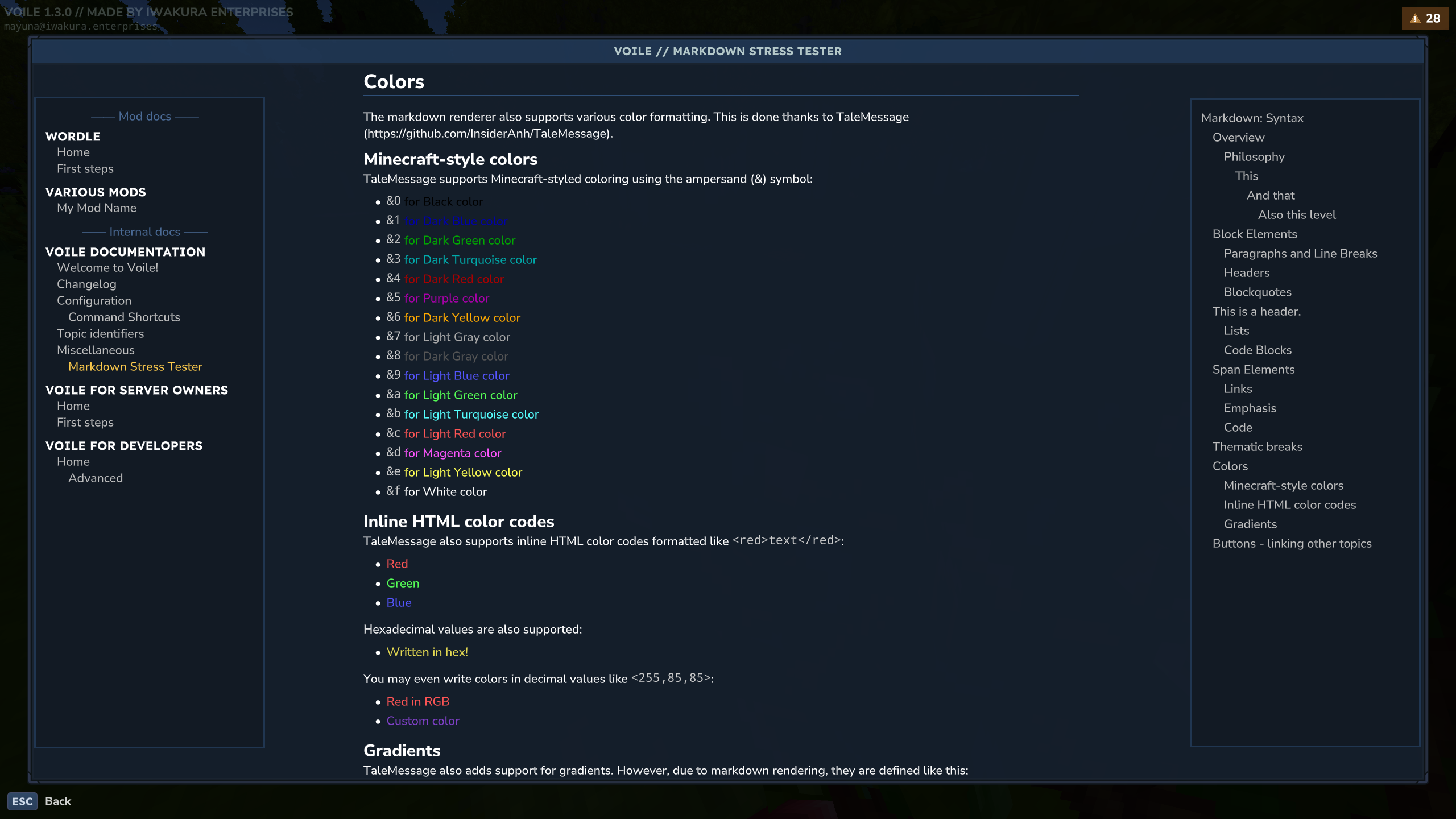
The markdown renderer supports various color formatting. This is done thanks to TaleMessage.
Minecraft-style colors
TaleMessage supports Minecraft-styled coloring using the ampersand (&) symbol:
&0for Black color&1for Dark Blue color&2for Dark Green color&3for Dark Turquoise color&4for Dark Red color&5for Purple color&6for Dark Yellow color&7for Light Gray color&8for Dark Gray color&9for Light Blue color&afor Light Green color&bfor Light Turquoise color&cfor Light Red color&dfor Magenta color&efor Light Yellow color&ffor White color
Inline HTML color codes
TaleMessage also supports inline HTML color codes formatted like <red>text</red>:
<red>Red</red><green>Green</green><blue>Blue</blue>
Hexadecimal values are also supported:
<#e5da52>Written in hex!</#e5da52>
You may even write colors in decimal values like <255,85,85>:
<255,85,85>Red in RGB</255,85,85><128,64,200>Custom color</128,64,200>
Gradients
TaleMessage also adds support for gradients. However, due to the Markdown rendering, they are defined like this:
Buttons - linking other topics
Due to Hytale's limitation, there cannot be inline links to other topics. As a compromise, Voile allows you to create buttons using HTML block.
This will create four buttons linking the same topic. As you can see, you must specify the topic's ID. You may also specify either a documentation group or documentation id (or both!) If there would be duplicate topic IDs, the button might not link to the correct topic.